Flows
The Flows tab is where you write and run your tests. Small reusable pieces, called units, are connected into scenarios, and scenarios into chains, so a change to your login screen means fixing one file, not fifty tests.
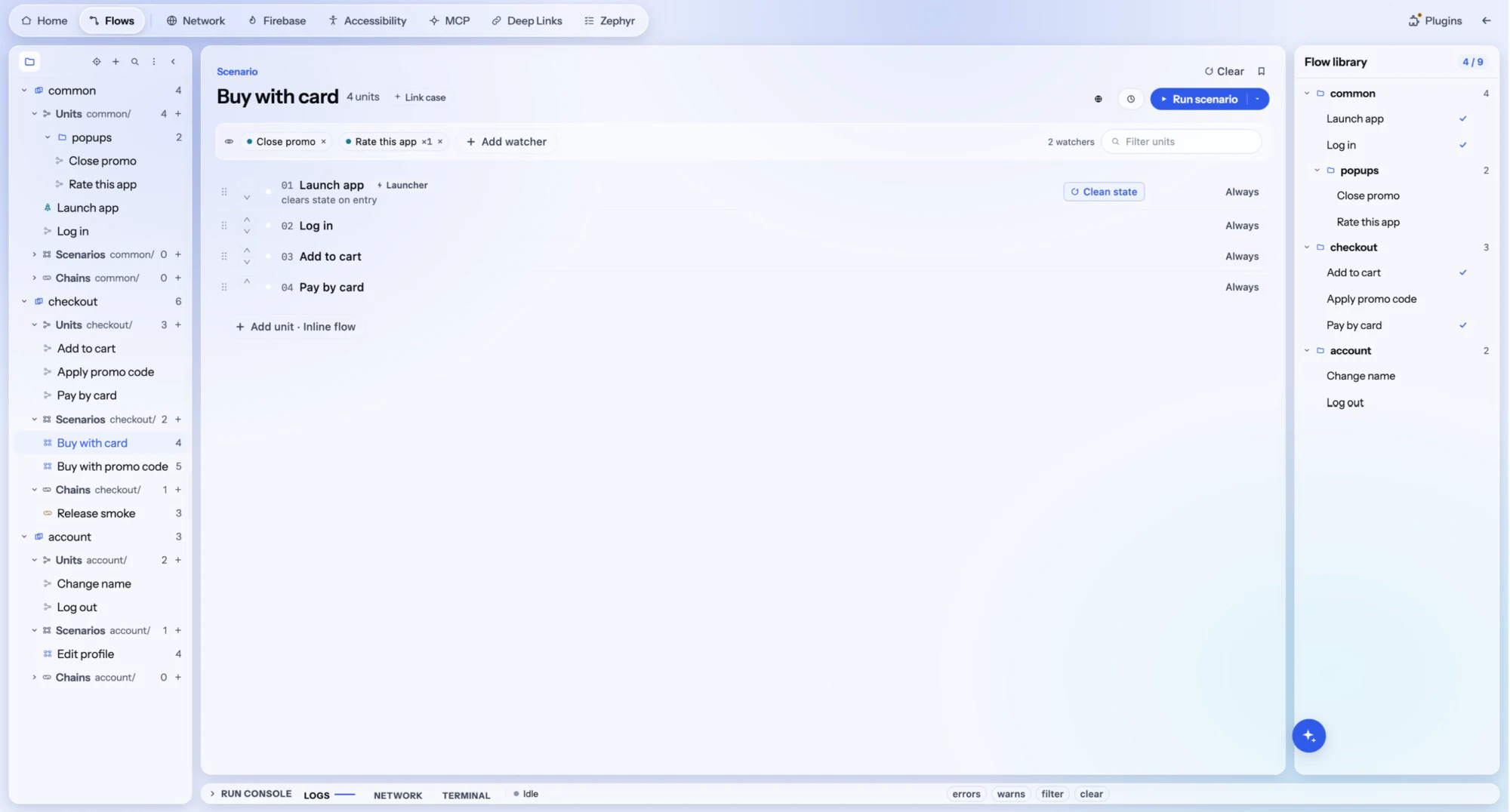
The three building blocks
Every test you build comes down to three things, each made from the one before it:
| Name | What it is | Example |
|---|---|---|
| Unit | A small, reusable piece of a test, in one .ds file | Launch app, Log in, Add to cart |
| Scenario | Units connected in order: one complete test | Buy with card |
| Chain | Scenarios that run one after another | Release smoke |
Two more things keep them tidy. A module holds the units, scenarios and chains of one part of your app or team, such as checkout. A folder groups units inside a module.
The project panel
The panel on the left shows the whole project as a tree. Each module has three groups, Units, Scenarios and Chains. The number beside each shows how many items it holds, and + creates a new one there.
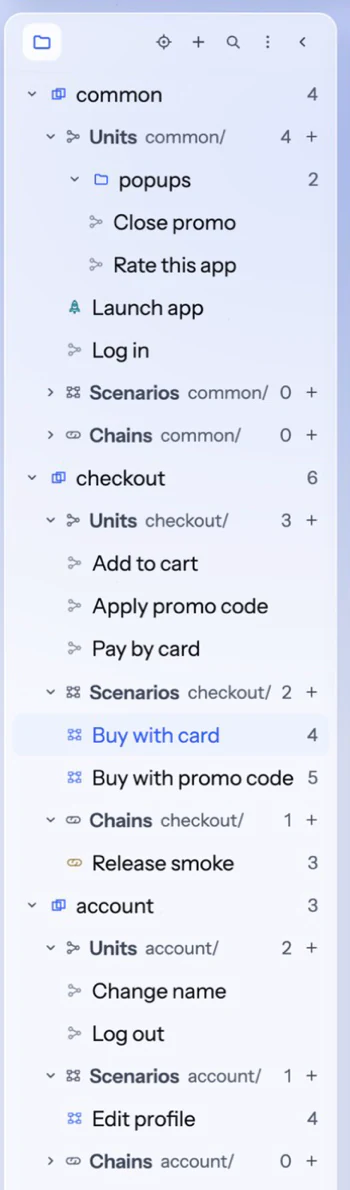
Everything is plain files in your project folder, so a project works well in Git, and the CLI runs it exactly as the app does.
Modules and folders
Make a module for each area of your app, or each team: checkout, account. Keep what everyone uses in a shared module, here called common. Use folders when a module's units start to pile up.
Units: the reusable pieces
A unit does one job, and a good one is small enough to name in a few words: launch the app, log in, add an item to the cart. Click a unit to open it in the editor, then press Run to try it on the device selected at the top of the window.
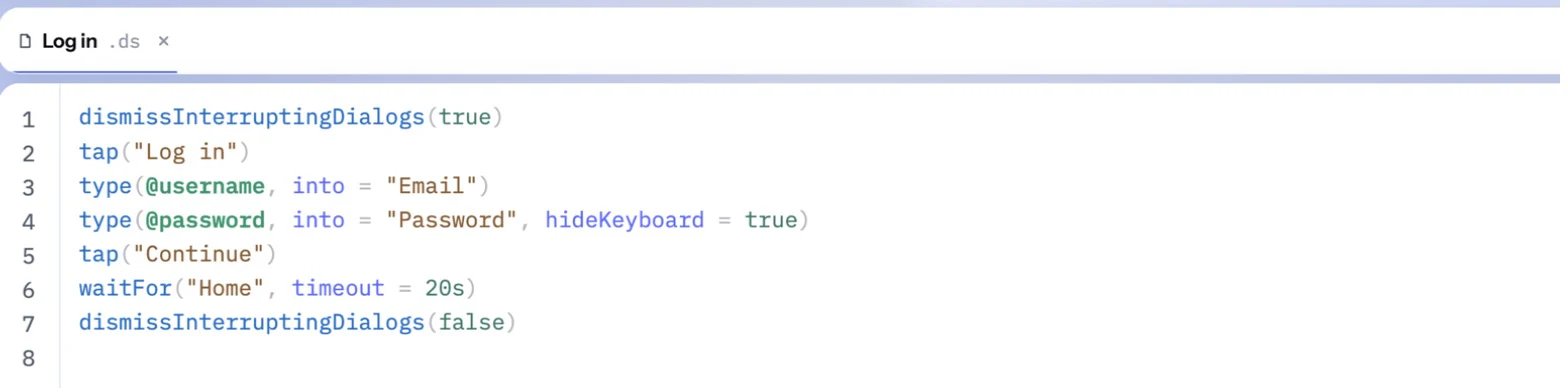
@username instead of a real address, and keep the value in a profile. The same unit then works for every user and environment.Functions: share steps between units
Some steps open almost every test, such as logging in and reaching the home screen. Write them once as a function, in a unit of their own, and call it from any unit. A unit that starts with scope(…) or fun holds functions only: it never runs by itself.
// common / Login helpers
scope(common)

fun openHomeScreen(userName: String, password: String = @password) {
    tap(label("Email"))
    type(userName)
    tap(label("Password"))
    type(password)
    tap("Login")
    waitFor("Home")
}
// checkout / Pay by card
common.openHomeScreen(userName = @username)
tap("Cart")
- Scope.
scope(common)puts the unit's functions undercommon., a name you pick. Without it they're called by their name alone. Inside the scope, its functions are called by their name alone too. - Parameters are
String,Number,BooleanorDuration, with an optional default. Arguments are always named. - A call runs the function's steps in its place. An
@param in the function reads the profile chosen at the call, and ause(…)orsetLanguageinside it carries on after it. Reports show the steps at the call's line. - In the editor, typing
common.lists the scope's functions, and parameter info shows what a call takes. Cmd/Ctrl-click a call to open its function. Alt+F7 lists every unit that calls it.
Scenarios: connect units into a test
A scenario is a list of units that run in order. To build one, click + next to Scenarios, then click units in the Flow library on the right to add them. Drag a row to change the order, then press Run scenario.
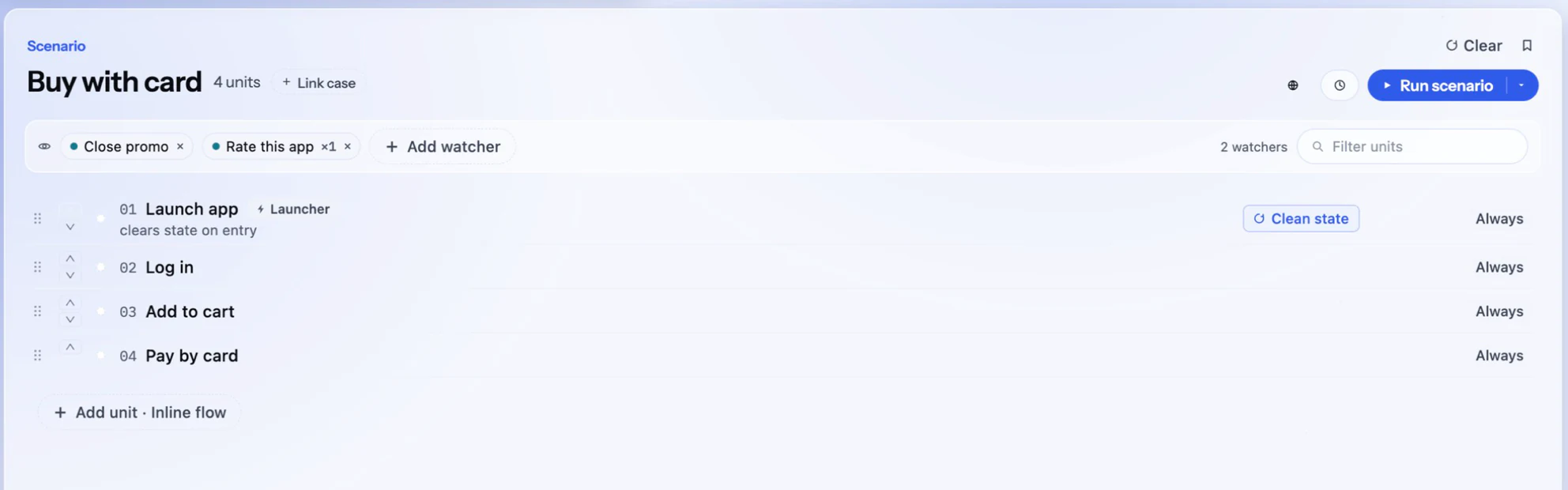
When your login screen changes, you fix the Log in unit once, and every scenario that uses it is fixed too.
The app starts once
A unit with launchApp gets a Launcher badge. Only the first one in the run starts the app, so the later units carry on in the same session without restarting it. To wipe the app's data first, set clearState = true on that unit's launchApp. A later launcher unit restarts the app only when you set it to.
What each step does on failure
Click the settings icon on a row to set how that step behaves. A step you changed shows what differs instead, in plain words, such as Retries once; click it to change it. These settings work the same in the app and in CI.
- Run when: always, or depending on how earlier steps went. For example, run a clean-up unit only after a failure.
- If it fails: stop the scenario, or continue with the next step. The scenario still counts as failed either way.
- Retry: run the step again once, twice or 3 times.
Chains: run scenarios together
A chain runs several scenarios one after another: a smoke test before a release, or a journey that crosses two teams' modules. Add scenarios from the Library on the right. A single unit can be added too.
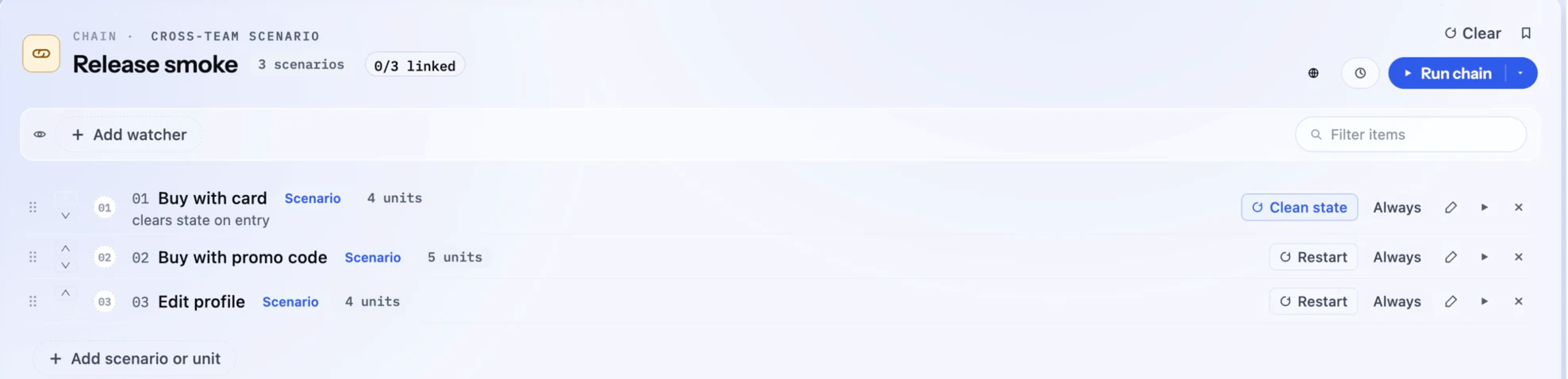
Variables a unit sets stay available to the later units of the run, so a chain can pass an order number from one scenario to the next.
Stop flaky tests from popups
Most flaky tests share one cause: something the test didn't ask for appears at an unpredictable moment. A promo sheet slides in, a rating prompt opens, and the tap meant for your button lands on the popup. The test fails, you run it again, and it passes.
Adding a wait or an if before each tap makes tests slow and still misses the timing. Dev Scenario has two features that handle this for you, and you usually want both.
| Compared | Watchers | dismissInterruptingDialogs |
|---|---|---|
| Best for | Popups you can recognize, with a known way to close them | Any popup that blocks a tap, even one you've never seen |
| Set up | On a scenario or chain | In a unit, around the steps at risk |
| What closes it | The steps you wrote | Back on Android, the SDK's dismiss on iOS |
| Runs on | Android (iOS isn't supported yet) | Android and iOS with the in-app SDK |
Watchers
A watcher is a unit that says "if this shows up, do this". It isn't a step: it waits in the background while the scenario runs. When its element appears, the current step pauses, the watcher runs, and the step carries on with the time it had left.
1. Write a unit that starts with if (visible(…)). The element is what to look for, and the block is what to do.
if (visible(id("promo_sheet"))) {
    tap(id("promo_close"))
}
2. Add it to the scenario. Press Add watcher in the strip under the scenario's title and pick the unit. Only units of this shape are offered.

3. Run the scenario. Each time a watcher runs, the console shows a line with what it found and how many of its runs it has used.
- It costs nothing while no popup appears. Watchers only look at screens the step is already reading, with no timers or extra reads.
- Each watcher has a limit: 5 runs per scenario by default, or 1, 3, 10 or no limit. A popup that keeps coming back can't hold your test forever, and it gets reported.
- A watcher that fails is only a warning. The step goes on.
- A step's own target comes first. A step that taps "Got it" itself isn't taken over by a watcher looking for "Got it".
- On a chain, add a watcher once and it applies to every scenario in the chain.
dismissInterruptingDialogs
This one needs no setup for each popup. The in-app SDK checks, at the moment of the tap, whether a dialog or sheet would catch the touch instead of your target. With this switch on, the popup is closed and the tap is sent again. With it off, the default, the step fails and says what blocked it.
Turn it on around the steps where the app may show something on its own, and off afterwards:
dismissInterruptingDialogs(true)
tap("Log in")
type(@username, into = "Email")
tap("Continue")
waitFor("Home", timeout = 20s)
dismissInterruptingDialogs(false)
- It only acts on a tap that would have been lost. With no popup in the way, it costs nothing. Assertions never close anything.
- It stays on for the later units of the run until you turn it off. A new run starts with it off.
- It gives up after 3 closes and fails the step, so a popup that can't be closed is reported.
Next steps
- Profiles: test data, secrets and translations
- Command reference: everything a unit can do
- How it drives your app: black-box or in-app SDK
- Run tests in CI: run the same project from the CLI