Profiles
Profiles keep your test data out of your tests. Your units say @username, and a profile says who that is, so the same test runs against staging or QA, with any user, in any language.
Open them with the Profiles button at the top right of the window. There are three tabs:
| Tab | What it holds | Used in a flow as |
|---|---|---|
| Apps | The apps you test, with their Android and iOS ids | launchApp() |
| Params | Test data for each environment: users, URLs, card numbers | @username |
| Translations | The app's texts in each language | @langs.sign_in |
The bar at the bottom of the dialog, Runs use, always shows what the next run will use from the open tab.
Apps
Add each app the project tests, with its Android package and iOS bundle id. A project often has more than one: the store build and a debug build, for example.
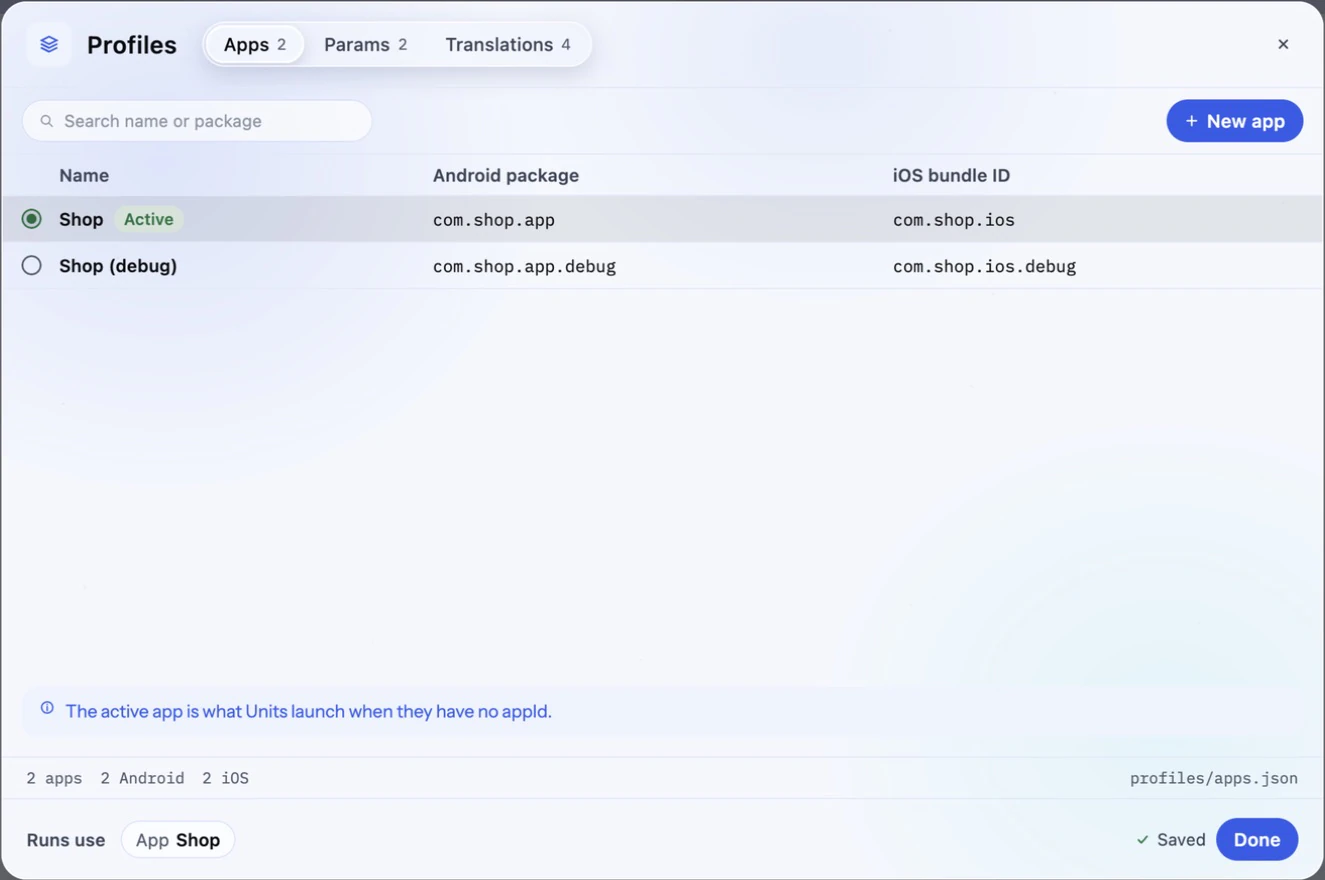
The active app is what a unit launches when it doesn't name one. Leave the id out of your units and you can switch between builds here, without editing a single test:
launchApp(clearState = true)Params
The Params tab is a table: each row is a key, each column a profile. A profile is usually an environment or a kind of user, and it gives every key its own value.
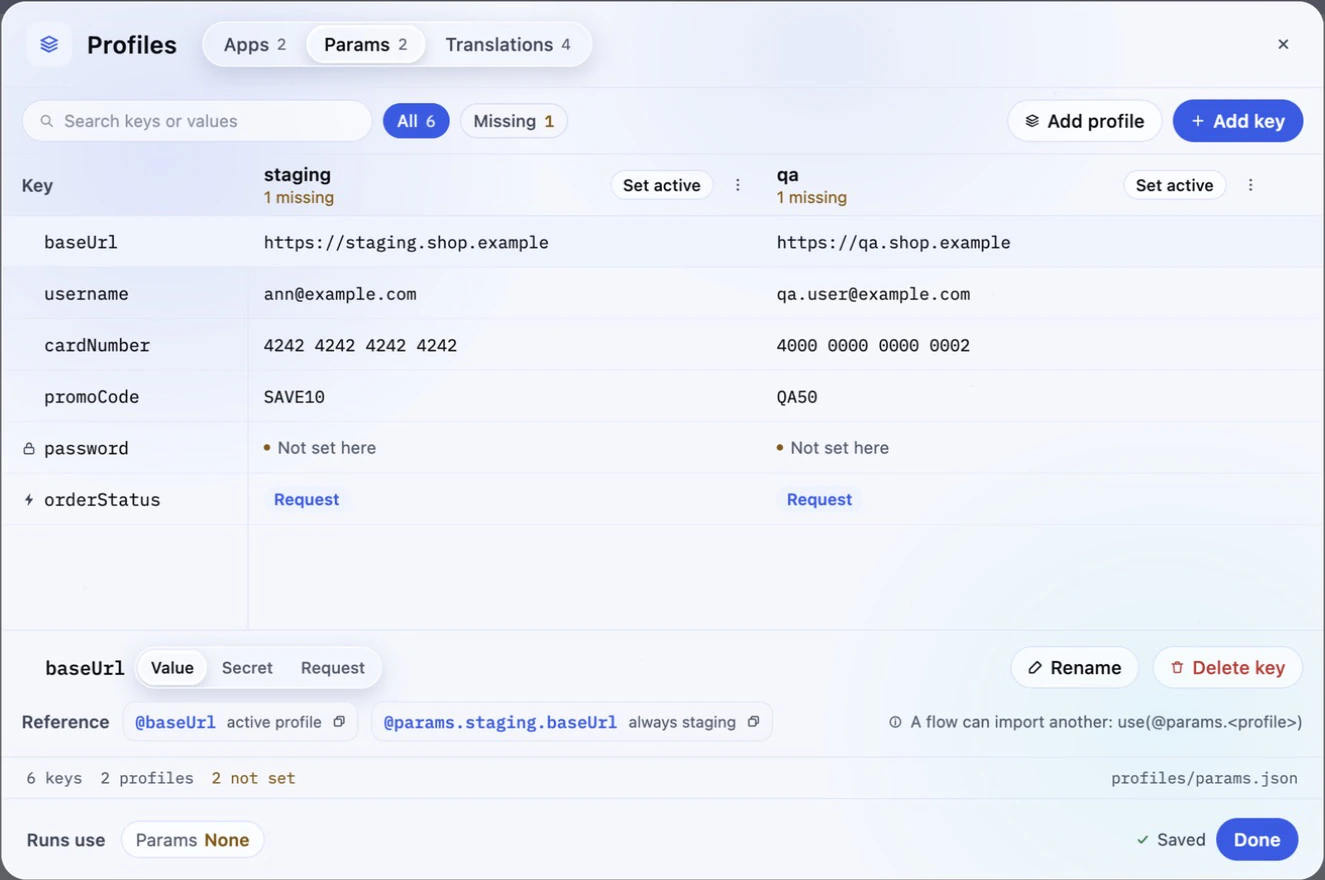
Write the key in your unit, with @ in front of it:
type(@username, into = "Email")
type(@password, into = "Password")
Autocomplete offers your keys as you type @, and the editor marks a key the imported profile doesn't have. In a run, a key with no value fails the run and names the unit, line and key, so a test never carries on with missing data.
Choosing the profile
A bare @username reads the first of these that applies:
| How | Written as | Use it when |
|---|---|---|
| Imported in a flow | use(@profile.qa) | A scenario must always use this profile |
| Active profile | Set active on the column | You pick the environment yourself, for this machine |
| In CI | --profile staging | The CLI picks the active profile for a run |
Once a flow says use(@profile.qa), every later step and unit of that run reads from qa. A shared unit near the start of a scenario is a good place for it. To read one key from another profile without switching, name it in full:
use(@profile.qa)
type(@username, into = "Email")
type(@profile.staging.promoCode, into = "Promo code")
profiles/params.json in the project, and can go in Git.Three kinds of key
Select a key, then choose how it gets its value. Your flow writes @key the same way for all three.
| Kind | Where the value comes from | Good for |
|---|---|---|
| Value | Typed into the table, saved in the project | Test users, URLs, promo codes |
| Secret | Kept on this machine, never in the project | Passwords, API keys |
| Request | Fetched over HTTP when a run uses it | Fresh tokens, a user made for this run, an order's status |
Secrets
A secret is safe to use in a project you share, because its value never reaches the project files. Paste it in for each profile. A lock marks the key, and its value is shown as •••• in the run console, reports and logs.
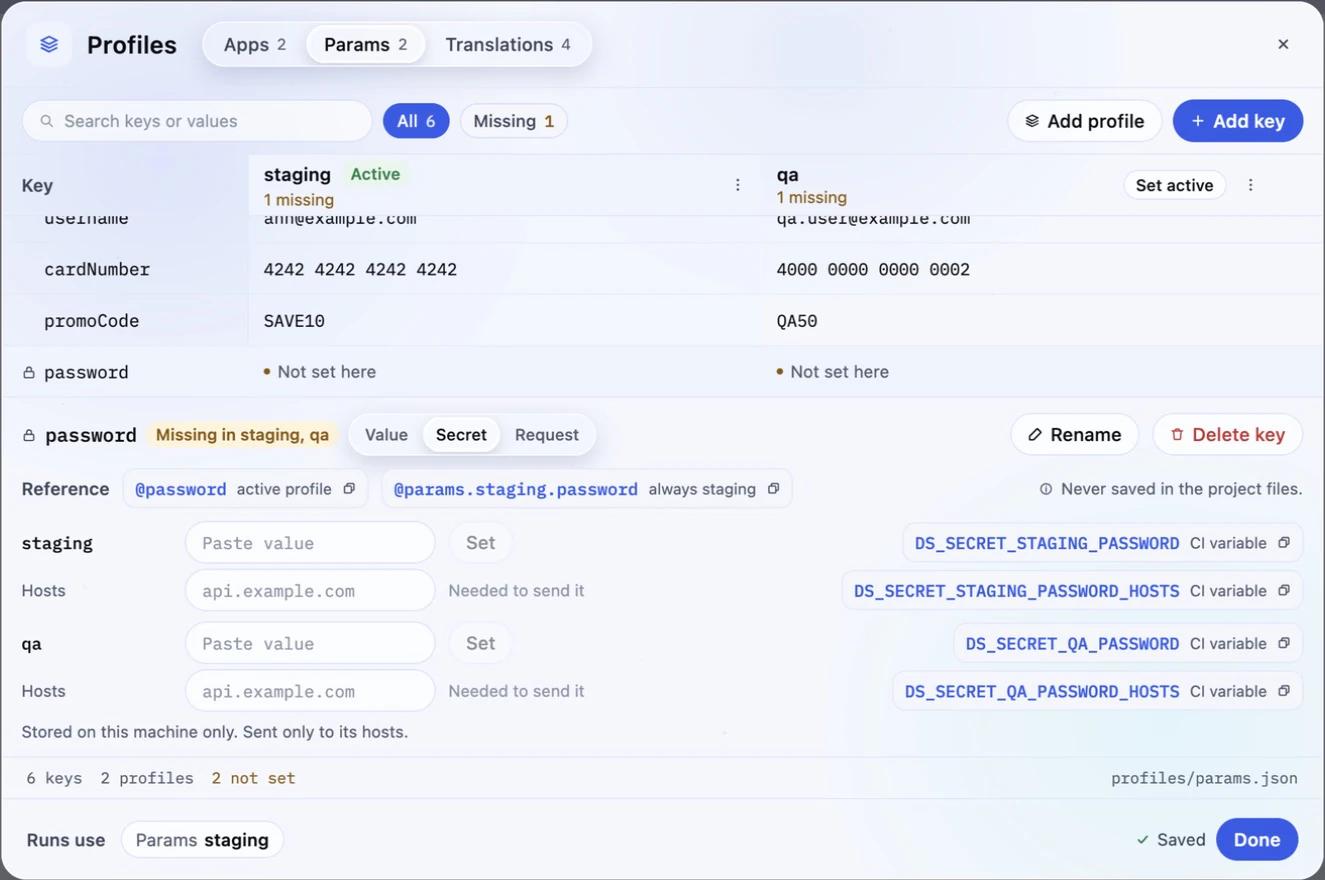
- In CI, set the variable shown beside the field, such as
DS_SECRET_STAGING_PASSWORD. It takes priority over a value saved on the machine. - On a teammate's machine, the key shows Not set here until they enter their own value.
- Hosts: only needed when a Request key sends the secret. List the servers it may go to, such as
api.example.com. A secret with no hosts is never sent, so a changed URL in the project can't carry it somewhere else. Typing it into the app in a flow doesn't need hosts.
Requests
A Request key asks a server for its value: log in to your backend for a token, create a new test user, or read an order's status. The request runs only when a run uses the key, and only once per run.
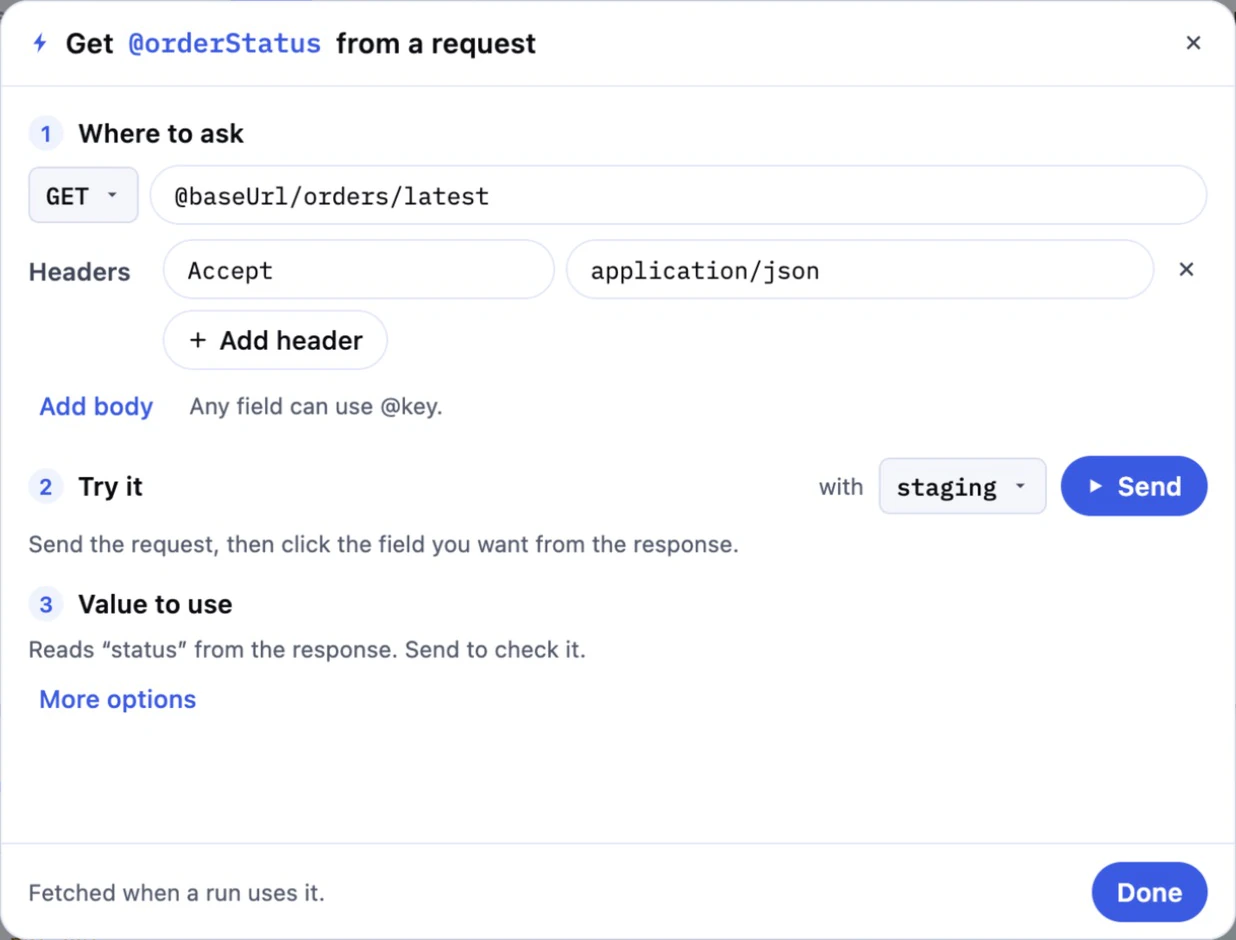
- Where to ask: the method and URL, plus headers and a body if needed.
@baseUrlfills in from the profile. - Try it: pick a profile and press Send to see the real response.
- Value to use: click the field you want in the response. More options has retries and hiding the value.
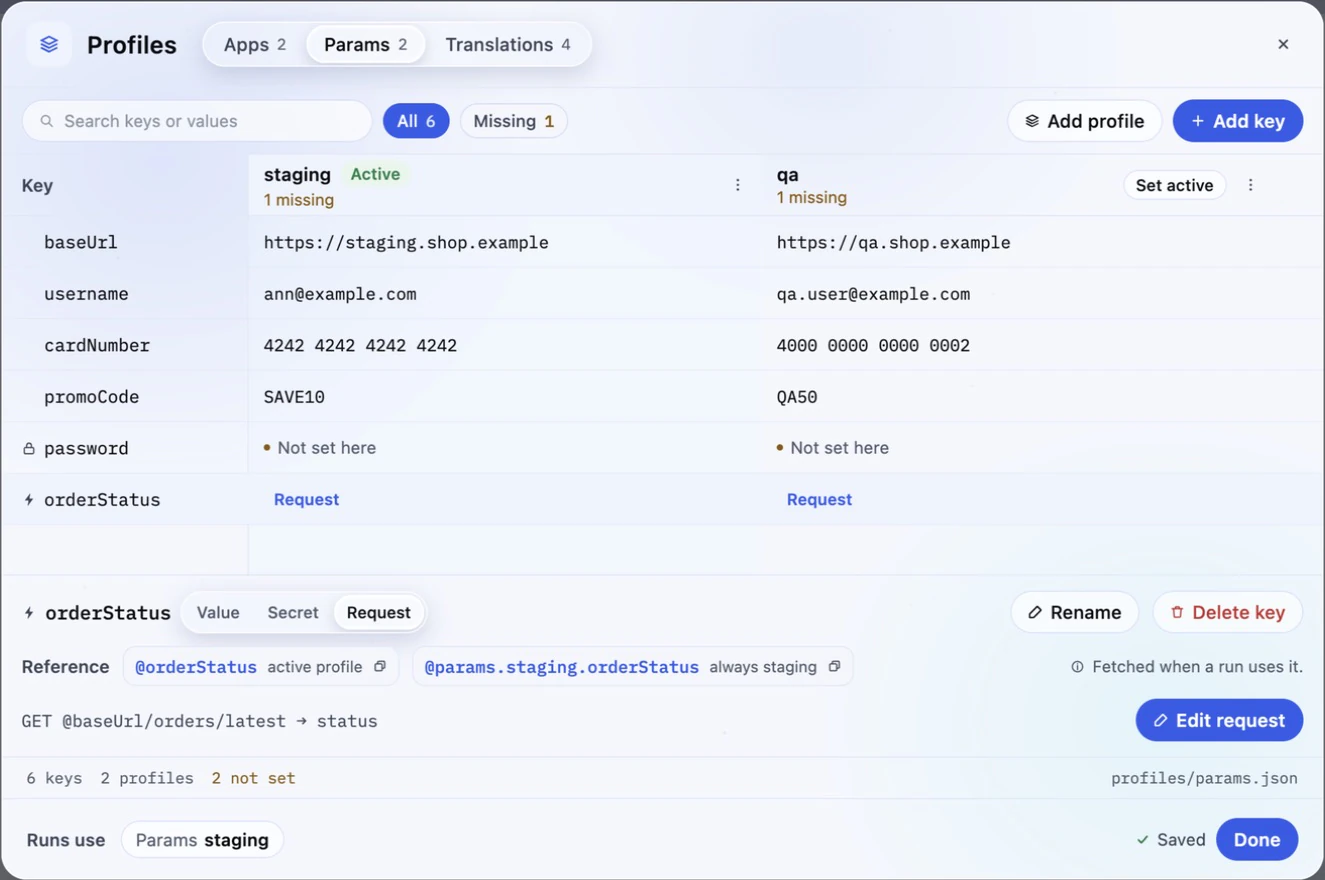
If a request fails, the run stops before its first step and says which key and why. A value that needs time, such as an order that's still shipping, can be read again during the test with waitForValue:
tap("Place order")
waitForValue(@orderStatus, equals = "Shipped", timeout = 2m)
Translations
If your app comes in several languages, a test that taps "Sign in" only works in English. Put the text here instead, and one flow runs in every language.
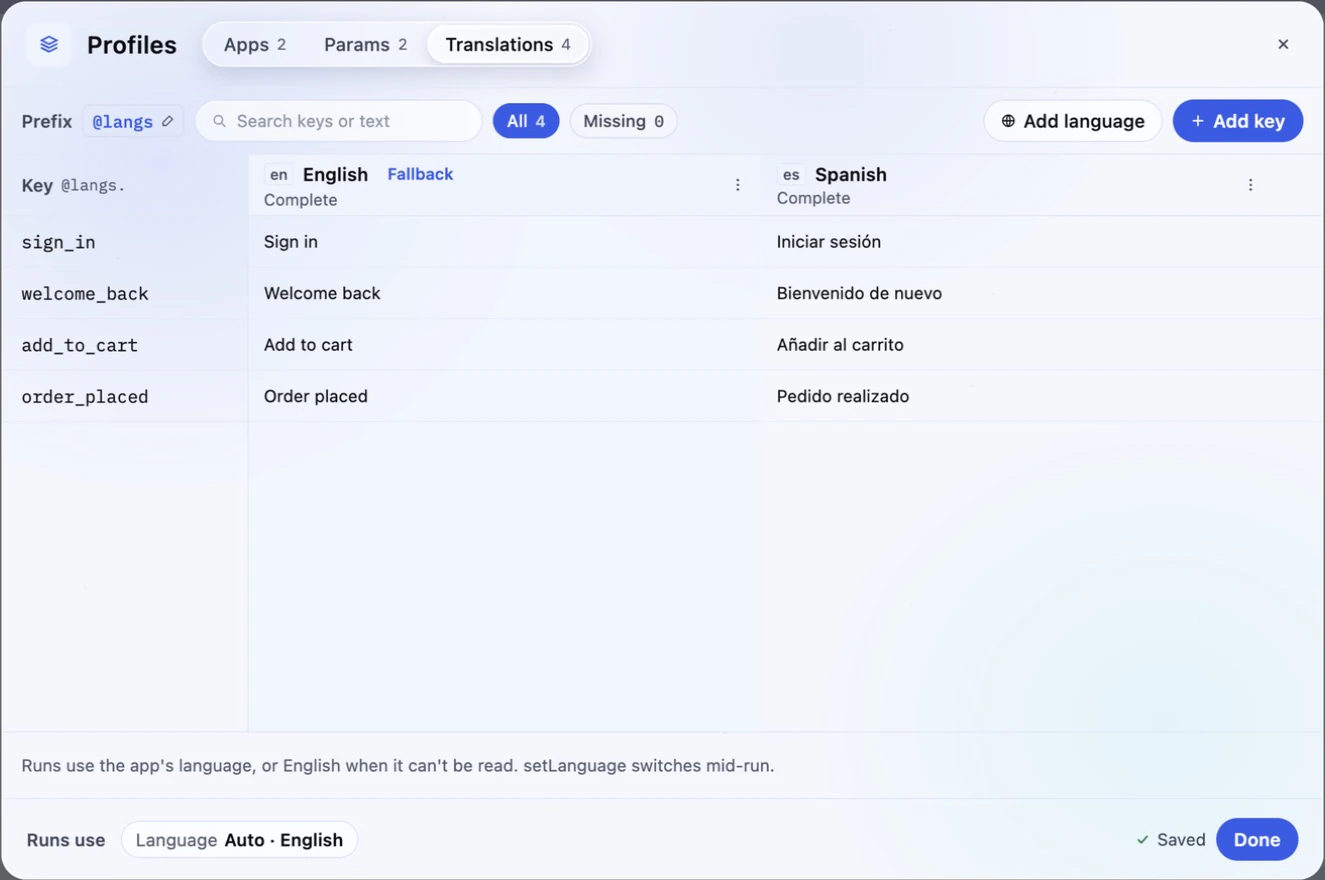
Write the prefix, then the key:
tap(@langs.sign_in)
assertVisible(@langs.welcome_back)
- The language is found for you. Dev Scenario reads the language the app is using on that device when the run starts, and picks the matching column.
- The fallback is used when that language can't be read, or isn't in the table. Change it from the language column's menu.
- To change language during a test, switch it in the app, then tell Dev Scenario with
setLanguage. - A text with no translation stays as written, without failing the run, so Missing is worth checking before you rely on a language.
Next steps
- Flows: use your keys in units and scenarios
- Run tests in CI: pick a profile and pass secrets on a CI machine
- Command reference: how
@profileand values are written