Network
The Network plugin shows every API call your app makes, and lets you answer those calls yourself. See why a screen failed without leaving your tests, and test the states a real backend rarely gives you: a declined card, an empty list, a slow server.
Get started
- Install the plugin. Press Plugins at the top right of the window, then install Network. A Network tab appears next to Flows.
- Add the interceptor to your app. Press Setup in the Network tab and follow the steps for your platform.
- Run a debug build. Calls appear in the list as the app makes them.
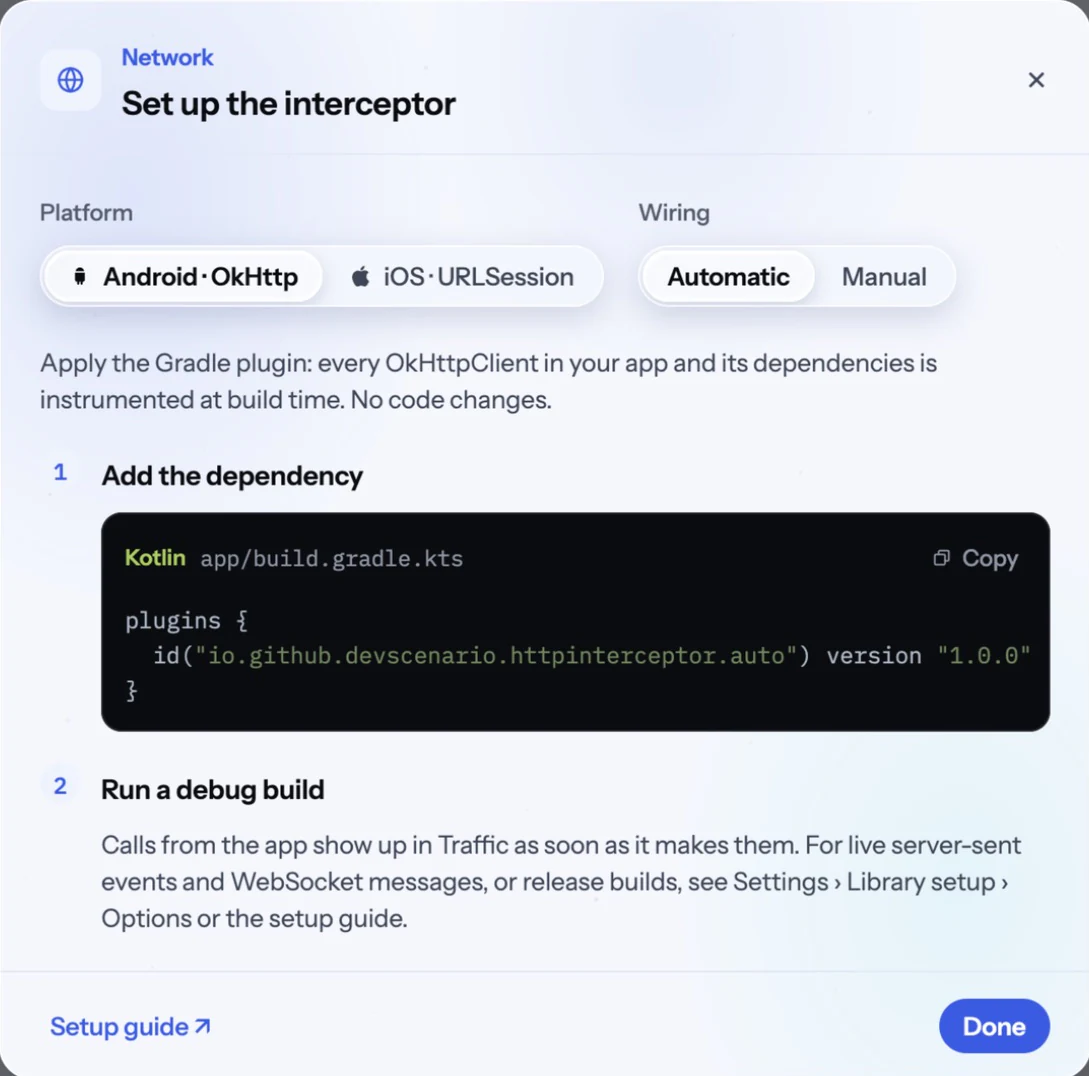
Network capture needs the interceptor in your app, whichever driver mode you use. It's meant for debug and test builds. See Library setup for all the options, including Flutter, and how release builds stay clean.
Traffic: see what the app does
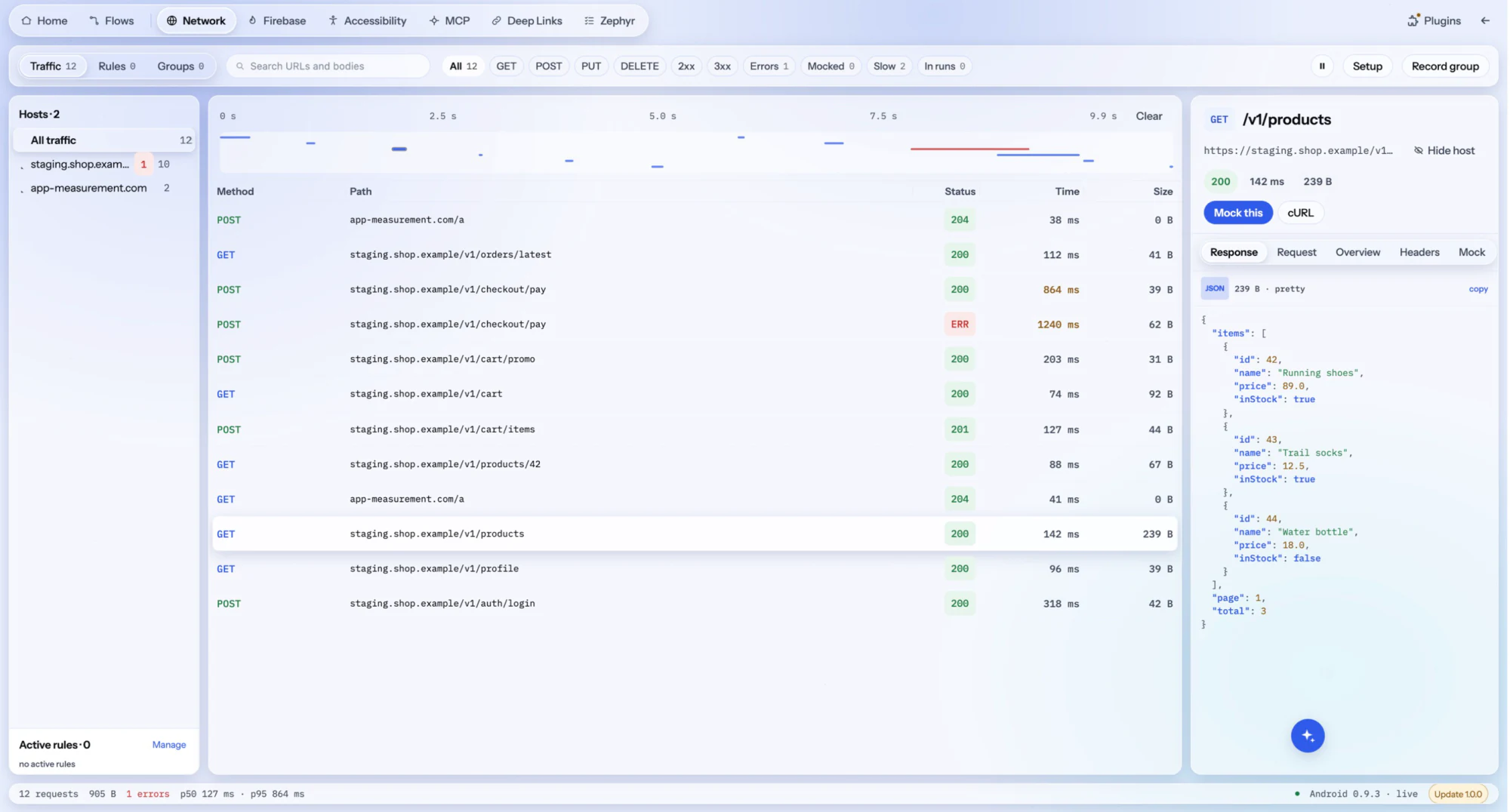
The Traffic view lists the calls, newest first. The bar at the bottom shows when the interceptor is connected, such as Android · live. If it offers an update, Setup has the new version.
- Hosts, on the left, narrow the list to one server or path. A red number counts that host's errors.
- Filters at the top show only a method, successes, Errors, Mocked calls, Slow calls over 500 ms, or calls made In runs. The search box also looks inside request and response bodies.
- The timeline above the list shows when each call happened and how long it took. Failed calls are red, so you can spot overlapping or slow calls at a glance.
- Click a call to see its Response, Request, Overview and Headers. cURL copies it as a command you can send to a teammate or a backend developer.
- Hide host removes a server you don't care about, such as analytics, from the list.
Mocks: answer a call yourself
A mock is a rule that says "when the app calls this URL, answer with this", so the request never reaches your server. Use one to test what your backend can't easily produce on demand.
The quickest way to make one is from a real call. Select it, then press Mock this. The URL, status and response are already filled in, so you only change what you want to test.
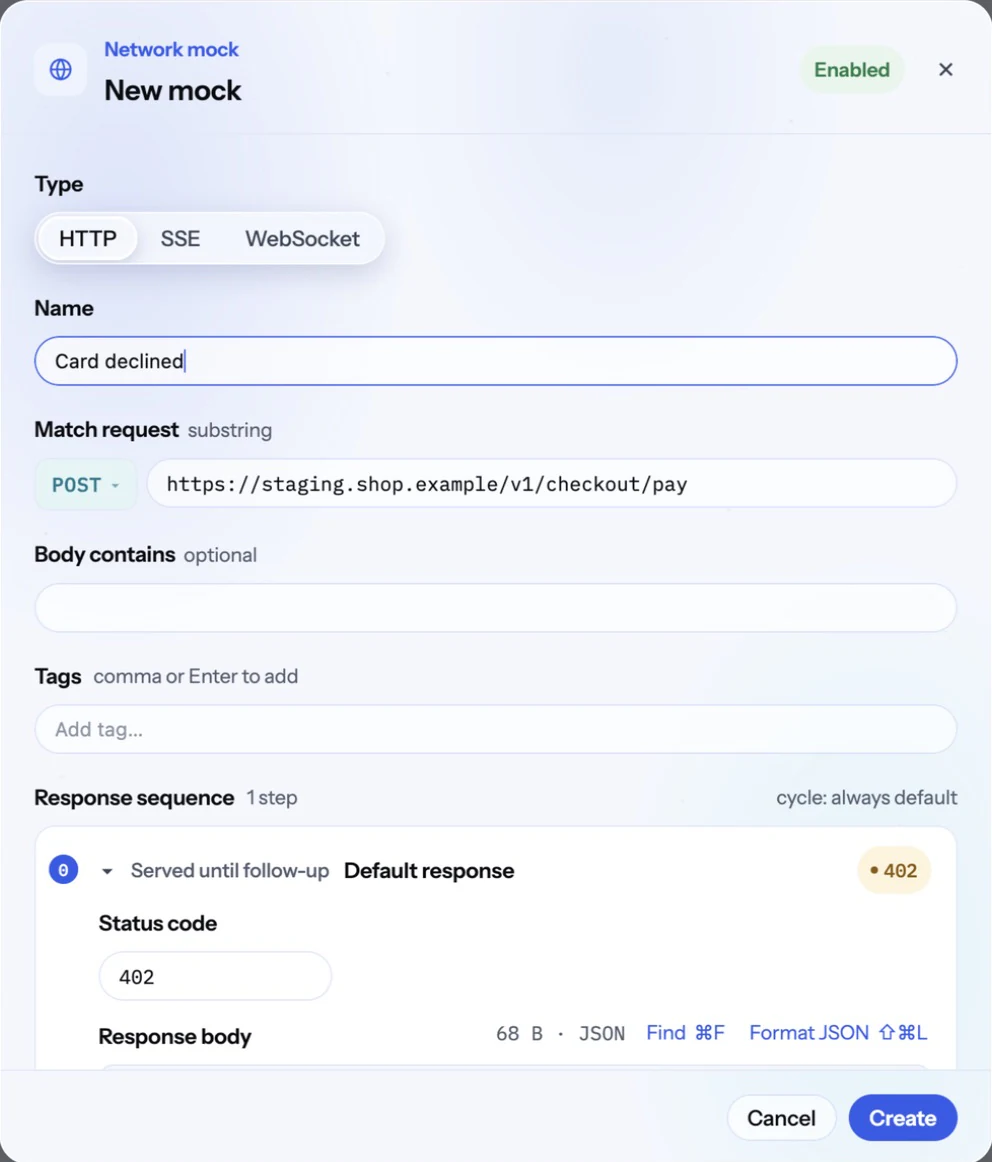
- Match request: the method, and text the URL must contain. Keep it short, such as
/v1/checkout/pay, to match on any server. - Body contains: optional, for one URL that does many things, such as GraphQL. Only requests with this text in their body match.
- Response sequence: the status and body to answer with. Add follow-ups to change the answer after a number of calls: fail the first payment, then succeed on the retry.
- Type: besides ordinary HTTP calls, a rule can play a scripted live stream: server-sent events or a WebSocket. These work on Android and iOS, with live streams turned on in the interceptor.
Rules
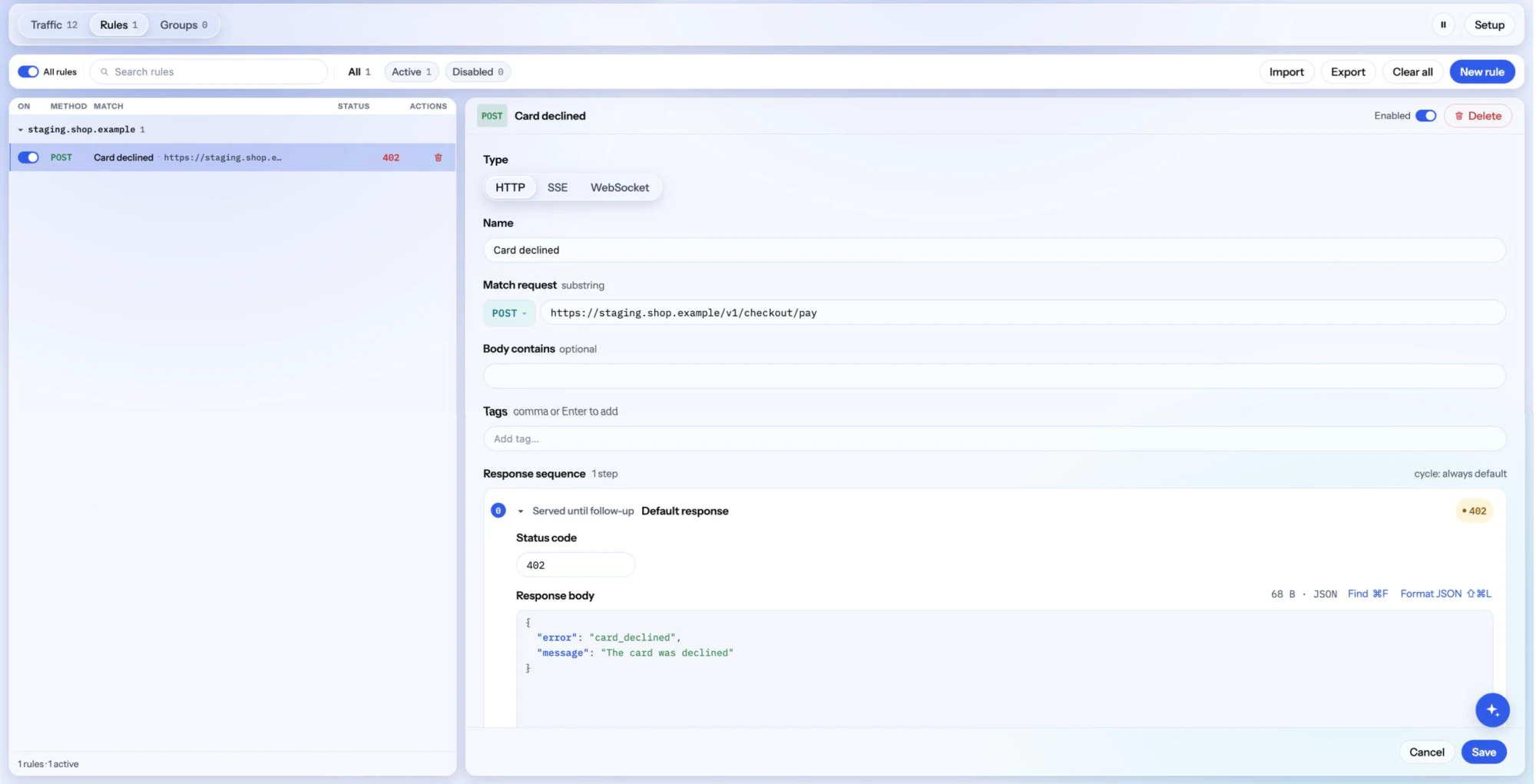
The Rules view lists your mocks by server. Each has its own switch, and All rules turns them all off and back on, which helps when you want to check the real backend for a moment. Export and Import share rules as a ZIP file.
Mock groups: a whole backend for one test
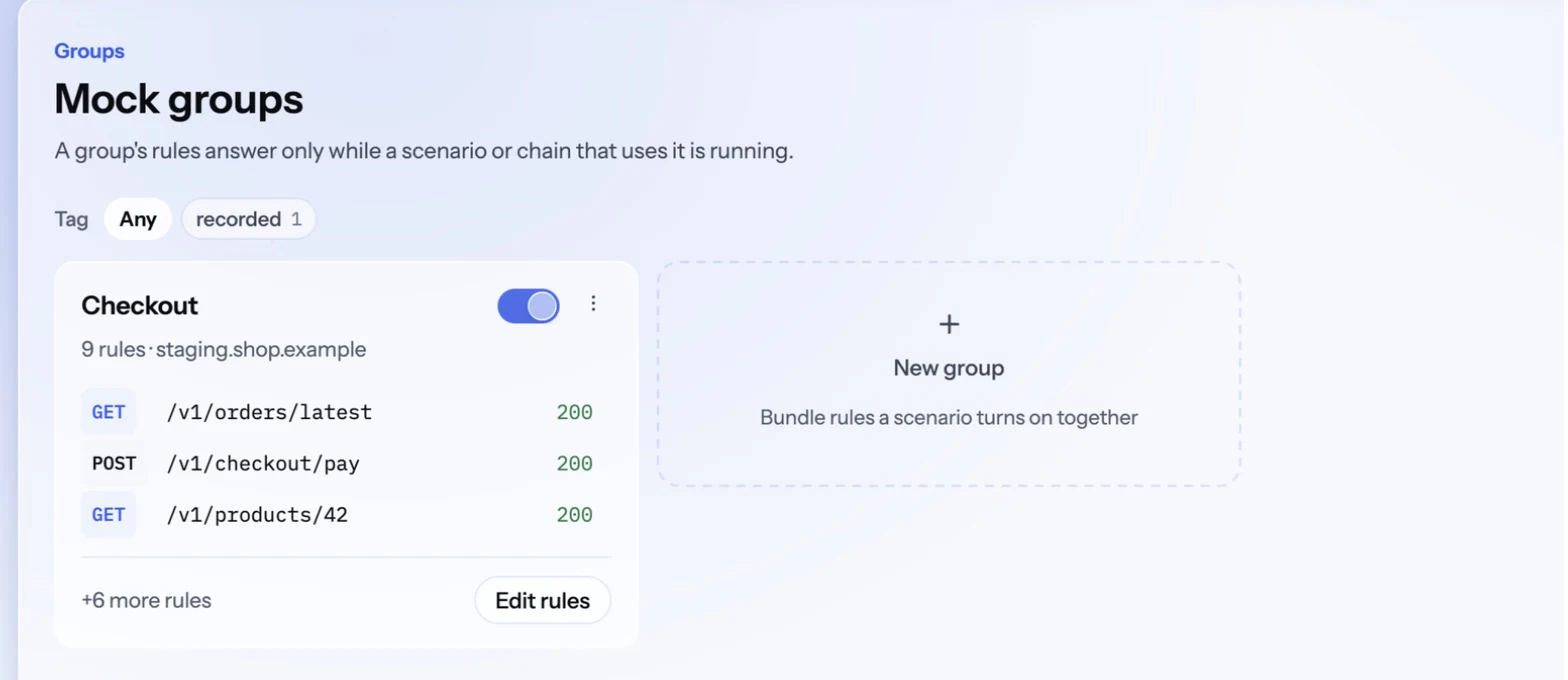
A group is a set of rules that a scenario or chain turns on while it runs. This is how you make a test independent of the backend: it gets the same answers every time, so it can't fail because a server is down or test data changed.
You don't have to write the rules by hand. Use the app once and record it.
1. Record the calls
Press Record group in the Traffic view:
- Start recording saves new calls until you stop, while you use the app or run a test.
- Save current calls uses what Traffic shows now. Filter the list first to keep only what you need.
- Save run uses the calls of a recent run, so you don't have to run it again.
2. Choose what to keep
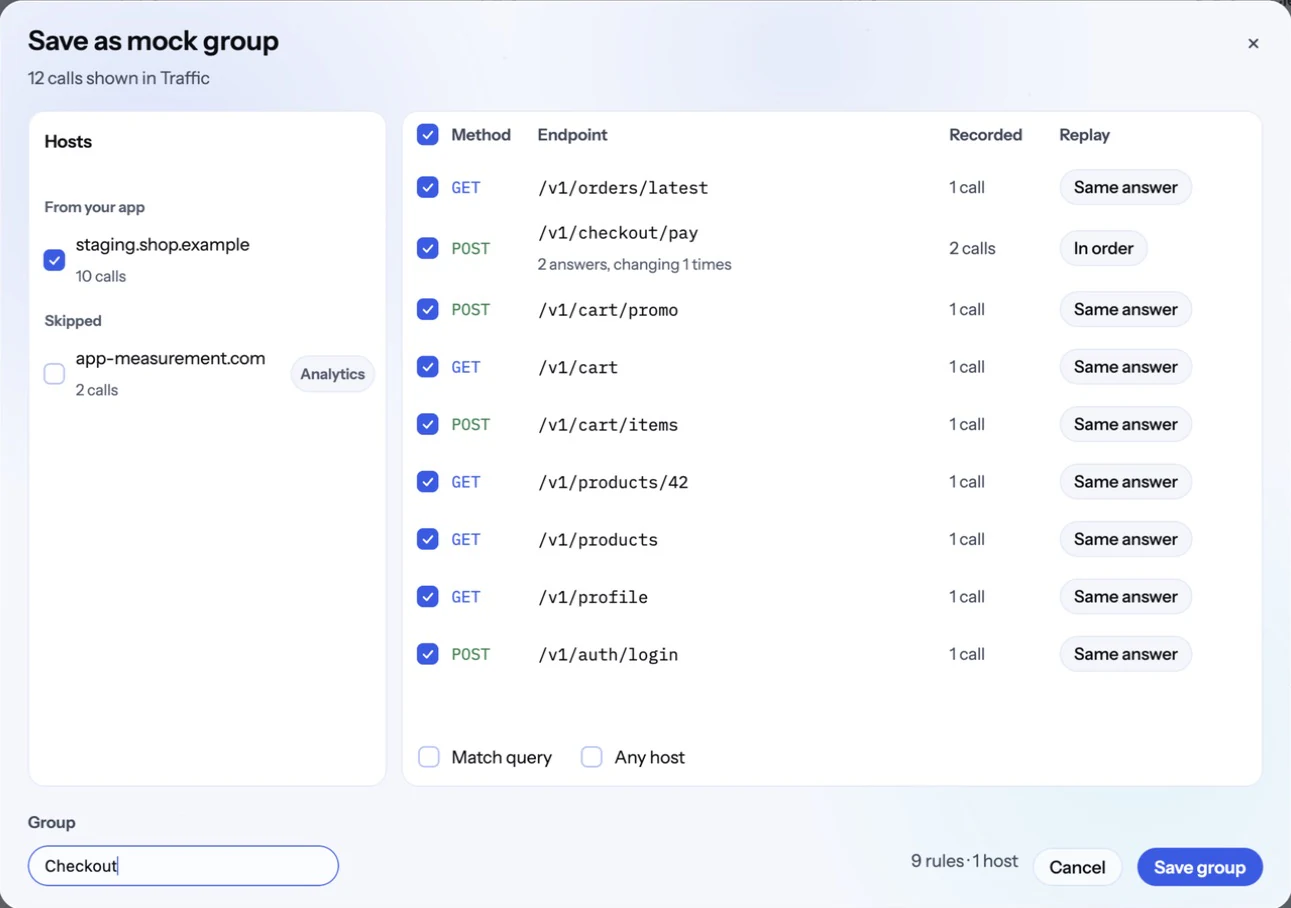
- Hosts: your app's servers are ticked. Analytics, crash-report and ad servers start unticked.
- Replay: for an endpoint called more than once, In order gives the answers in the order they came, which suits a payment that failed and then worked. The other choices repeat one answer.
- Match query: treats
?page=1and?page=2as different endpoints. - Any host: leaves the server out of the rules, so they also work against another environment.
- Group: saving under an existing name replaces that group, which is how you update it after the API changes.
3. Use it in a scenario
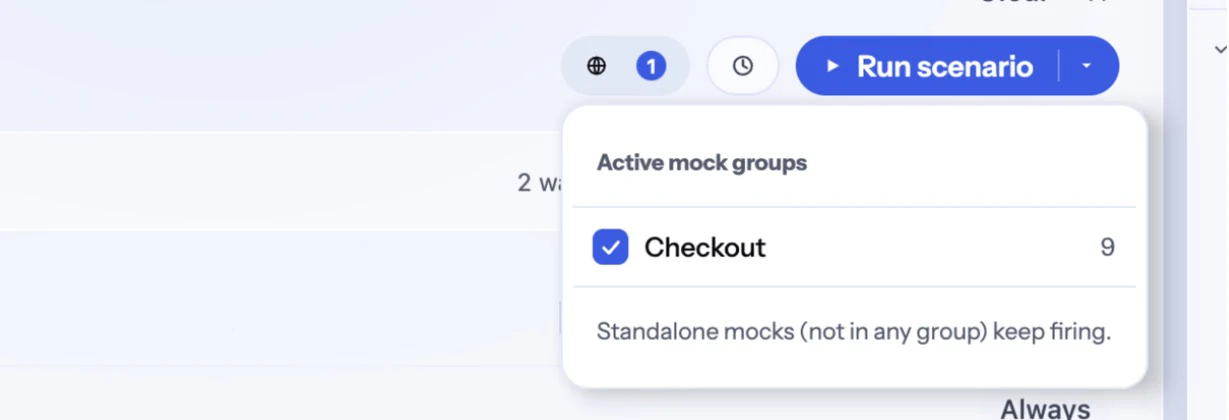
Open your scenario or chain, press the globe button beside Run scenario, and tick the group. The number on the button shows how many are active.
Now the test can check how the app handles the mocked answer. With a rule that declines the card, a flow can check the message your users would see:
tap("Pay")
assertVisible("The card was declined")
- Groups only apply to scenarios and chains. Running a single unit doesn't use them, and neither does using the app by hand.
- Rules outside groups keep answering during the run as well.
- A group is on your computer until you track it. In the group's menu, choose Track in Git: the group and its rules are saved in the project's
mocks/folder, so teammates and CI get them with the project. The scenario's menu marks a group that isn't tracked as local. - In CI, the CLI serves the tracked groups when a scenario of the run selects one; each scenario gets its own groups. See Run tests in CI.
Next steps
- Library setup: add the interceptor on Android, iOS or Flutter
- Flows: build the scenarios that use your groups
- Run tests in CI: run mocked tests on every build